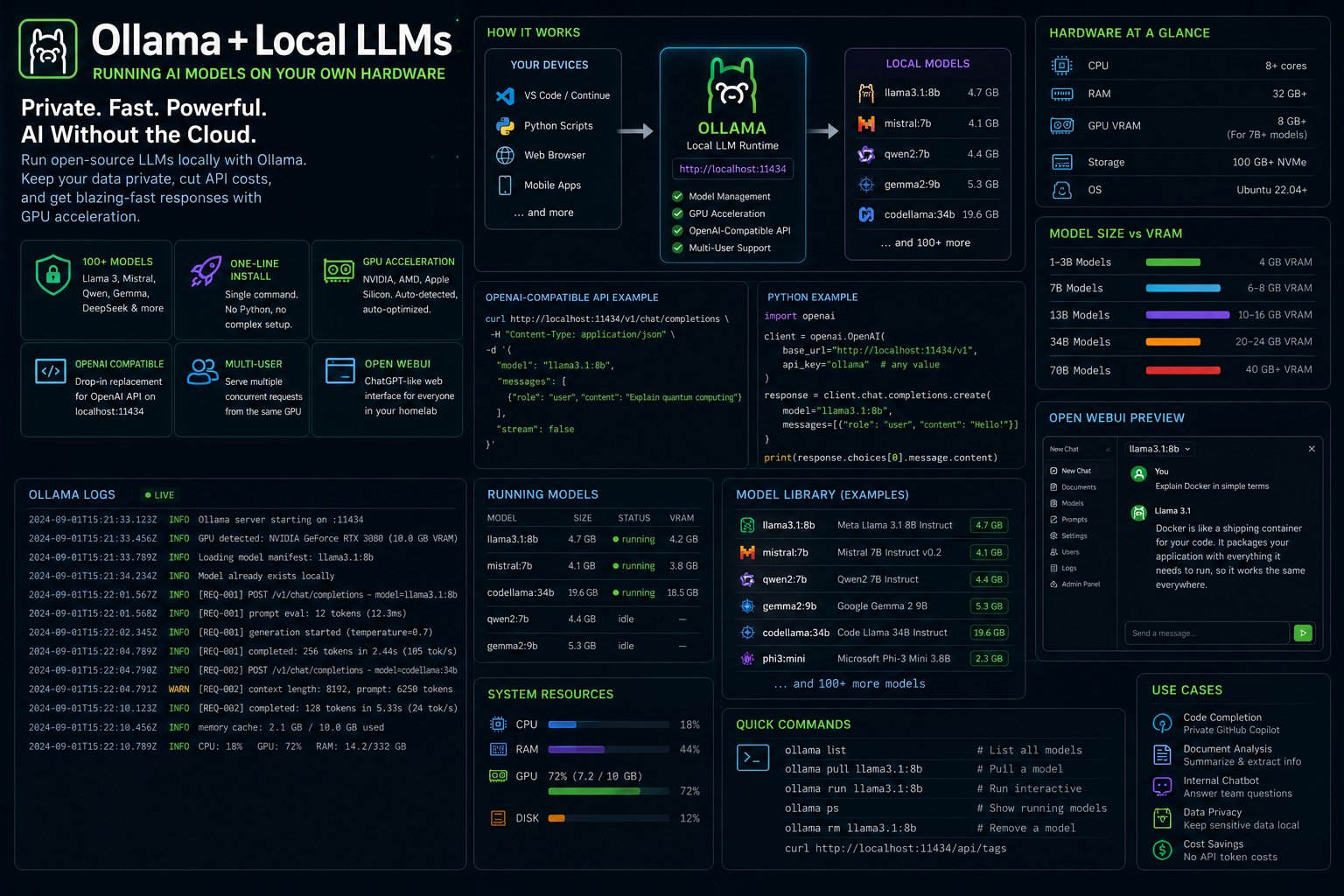
Ollama + Local LLMs — Running AI Models on Your Own Hardware
Running a 70-billion-parameter language model on your own server used to mean downloading 40 GB of weights, configuring CUDA toolkits, and debugging out-of-memory errors for hours. Ollama makes it a one-line install.
I run Ollama on a Proxmox VM with a passthrough GPU and serve local LLMs to my entire homelab — for code completion, document summarization, and internal chatbots — without sending a single token to the cloud. This guide walks through installing Ollama on Linux, pulling models, GPU acceleration, API usage, and integrating with Open WebUI for a ChatGPT-like interface.
What It Is
| Platform | Ollama (local LLM runtime) |
| Purpose | Run open-source LLMs locally with GPU acceleration |
| License | MIT (Ollama), model-specific licenses |
| Supported GPUs | NVIDIA (CUDA), AMD (ROCm), Apple Silicon (Metal) |
| Repository | github.com/ollama/ollama |
What You Get
| Feature | Details |
|---|---|
| Model Library | 100+ pre-built models (Llama 3, Mistral, Qwen, Gemma, DeepSeek, Phi) |
| One-Line Install | Single bash command, no Python environment needed |
| GPU Acceleration | Auto-detects NVIDIA/AMD/Metal, no manual CUDA setup |
| OpenAI-Compatible API | Drop-in replacement for OpenAI API on localhost:11434 |
| Model Management | Pull, list, remove, create custom models with Modelfiles |
| Multi-User | Serve multiple concurrent requests from the same GPU |
| Open WebUI | ChatGPT-like web interface for non-technical users |
The Core Problem: AI Without the Cloud
Most AI tools require sending your data to OpenAI, Anthropic, or Google. That creates three problems:
- Privacy. Sensitive code, internal documents, and customer data leave your network
- Cost. API tokens add up fast — a busy dev team can burn $500+/month on code completion alone
- Latency. Round-trips to cloud APIs add 200–500ms per request
Local LLMs solve all three — but only if setup is simple enough that you'll actually use them. Ollama does that.
- Runtime
- Ollama (Go binary, single executable)
- Model Format
- GGUF (quantized, 2–40 GB per model)
- Default Port
- 11434 (HTTP API)
- API Format
- OpenAI-compatible (/v1/chat/completions)
- GPU Detection
- Automatic (CUDA, ROCm, Metal)
- Storage
- ~/.ollama/models/ (default)
Step 0 — Hardware Requirements
Minimum vs Recommended
| Component | Minimum | Recommended |
|---|---|---|
| CPU | 4 cores | 8+ cores |
| RAM | 8 GB | 32 GB |
| GPU VRAM | None (CPU-only) | 8 GB+ (NVIDIA) |
| Storage | 20 GB free | 100 GB+ NVMe |
| OS | Ubuntu 22.04+ | Ubuntu 24.04 LTS |
Model Size vs VRAM
- 1–3B models
- 4 GB VRAM (Phi-3, Qwen2-1.5B)
- 7B models
- 6–8 GB VRAM (Llama 3, Mistral, Gemma 2)
- 13B models
- 10–16 GB VRAM (Llama 3-13B, Yi-34B quantized)
- 34B models
- 20–24 GB VRAM (CodeLlama-34B, Yi-34B)
- 70B models
- 40–48 GB VRAM (Llama 3-70B, Qwen2-72B)
Rule of thumb: A 7B model at Q4_K_M quantization needs ~5 GB VRAM. A 70B model at Q4_K_M needs ~40 GB. CPU-only works but is 10–50x slower.
Step 1 — Install Ollama
Linux (Recommended)
curl -fsSL https://ollama.com/install.sh | sh
That's it. The script:
- Downloads the Ollama binary
- Creates a systemd service (ollama.service)
- Sets up GPU detection (NVIDIA/AMD)
- Starts the service immediately
Verify Installation
ollama --version
# ollama version 0.6.2

systemctl status ollama
# ● ollama.service - Ollama Service
#      Active: active (running) since ...

curl http://localhost:11434/api/tags
# {"models":[]}
NVIDIA GPU Setup (If Not Auto-Detected)
# Check if NVIDIA driver is installed
nvidia-smi

# If not, install NVIDIA drivers
sudo apt install nvidia-driver-535 nvidia-utils-535 -y
sudo reboot

# Verify CUDA is available to Ollama
ollama run llama3.2 --verbose
# Look for: "gpu" in the verbose output
Step 2 — Pull Your First Model
Browse the Model Library
# List available models
ollama list

# Search for models
ollama search llama
Recommended Starter Models
| Model | Size | VRAM | Best For |
|---|---|---|---|
llama3.2 |
2 GB | 4 GB | General chat, fast |
llama3.1:8b |
4.7 GB | 6 GB | Balanced quality/speed |
mistral |
4.1 GB | 6 GB | Instruction following |
qwen2.5-coder:7b |
4.4 GB | 6 GB | Code generation |
deepseek-coder-v2:16b |
8.9 GB | 10 GB | Advanced coding |
gemma2:9b |
5.4 GB | 8 GB | General, Google quality |
llama3.1:70b |
40 GB | 48 GB | Best quality (needs big GPU) |
Pull a Model
# Pull Llama 3.2 (small, fast, good for testing)
ollama pull llama3.2

# Pull a coding model
ollama pull qwen2.5-coder:7b

# Pull a larger model if you have VRAM
ollama pull llama3.1:8b
Run Interactive Chat
ollama run llama3.2
# >>> What is the capital of France?
# The capital of France is Paris.

# >>> /bye  (to exit)
Step 3 — GPU Acceleration
Check GPU Status
# While running a model, watch GPU usage
watch -n 1 nvidia-smi

# Or check Ollama's GPU detection
ollama run llama3.2 --verbose 2>&1 | grep -i gpu
NVIDIA Multi-GPU (Tensor Parallelism)
Ollama automatically distributes large models across multiple GPUs:
# Check available GPUs
nvidia-smi -L
# GPU 0: NVIDIA GeForce RTX 4090 (24576 MiB)
# GPU 1: NVIDIA GeForce RTX 4090 (24576 MiB)

# Ollama auto-uses both for 70B models
ollama pull llama3.1:70b
ollama run llama3.1:70b
AMD GPU (ROCm)
# Install ROCm (Ubuntu 24.04)
sudo apt install rocm-hip-runtime -y

# Ollama auto-detects ROCm
ollama run llama3.2 --verbose
# Should show "gpu" in output
CPU-Only Fallback
If no GPU is detected, Ollama runs on CPU automatically — just slower:
# Force CPU-only (useful for testing)
CUDA_VISIBLE_DEVICES="" ollama run llama3.2
Step 4 — API Usage
Ollama exposes an OpenAI-compatible API on port 11434.
Chat Completions
curl http://localhost:11434/v1/chat/completions \
  -H "Content-Type: application/json" \
  -d '{
    "model": "llama3.2",
    "messages": [
      {"role": "user", "content": "Write a Python function to check if a number is prime"}
    ]
  }'
Streaming
curl http://localhost:11434/v1/chat/completions \
  -H "Content-Type: application/json" \
  -d '{
    "model": "llama3.2",
    "messages": [{"role": "user", "content": "Hello"}],
    "stream": true
  }'
Python Integration
import requests

response = requests.post(
    "http://localhost:11434/v1/chat/completions",
    json={
        "model": "llama3.2",
        "messages": [{"role": "user", "content": "Explain Docker in 3 sentences"}],
        "stream": False
    }
)

print(response.json()["choices"][0]["message"]["content"])
Using with OpenAI Python SDK
from openai import OpenAI

client = OpenAI(
    base_url="http://localhost:11434/v1",
    api_key="ollama"  # Ollama doesn't require a real key
)

response = client.chat.completions.create(
    model="llama3.2",
    messages=[{"role": "user", "content": "Hello"}]
)

print(response.choices[0].message.content)
Step 5 — Open WebUI (ChatGPT Interface)
Open WebUI gives you a browser-based chat interface for non-technical users.
Install with Docker
docker run -d \
  --name open-webui \
  --network host \
  -v open-webui:/app/backend/data \
  -e OLLAMA_BASE_URL=http://localhost:11434 \
  --restart unless-stopped \
  ghcr.io/open-webui/open-webui:main
Access
Open http://YOUR_SERVER_IP:8080 in your browser. Create an admin account on first visit.
Features
| Feature | Details |
|---|---|
| Chat Interface | ChatGPT-like UI with conversation history |
| Model Selection | Dropdown to pick any Ollama model |
| RAG (Retrieval) | Upload documents and ask questions about them |
| Image Generation | Integration with DALL-E or Stable Diffusion |
| Multi-User | User accounts with admin controls |
| API Keys | Generate API keys for external tools |
Step 6 — Custom Models (Modelfiles)
Create specialized models with system prompts, parameters, and file imports.
Example: Code Reviewer
cat << 'EOF' > Modelfile
FROM qwen2.5-coder:7b

SYSTEM """You are a senior code reviewer. When given code:
1. Identify bugs and security issues
2. Suggest performance improvements
3. Check for style violations
4. Rate the code quality (1-10)
Be concise and specific."""

PARAMETER temperature 0.3
PARAMETER top_p 0.9
PARAMETER num_ctx 8192
EOF

ollama create code-reviewer -f Modelfile
ollama run code-reviewer
Example: Documentation Writer
cat << 'EOF' > Modelfile
FROM llama3.1:8b

SYSTEM """You are a technical documentation writer. Write clear, concise documentation
for code. Follow these rules:
- Use active voice
- Include code examples
- Keep sentences under 25 words
- Use markdown formatting"""

PARAMETER temperature 0.5
PARAMETER num_ctx 16384
EOF

ollama create doc-writer -f Modelfile
Step 7 — systemd Service Management
Start/Stop/Restart
sudo systemctl start ollama
sudo systemctl stop ollama
sudo systemctl restart ollama
View Logs
sudo journalctl -u ollama -f
Configure Model Storage
# Move models to a different drive
sudo mkdir -p /mnt/fast-ssd/ollama
sudo chown ollama:ollama /mnt/fast-ssd/ollama

# Edit the service file
sudo systemctl edit ollama
# Add:
# [Service]
# Environment="OLLAMA_MODELS=/mnt/fast-ssd/ollama"

sudo systemctl daemon-reload
sudo systemctl restart ollama
What I'd Tell Anyone Building One
-
Start with llama3.2 or qwen2.5-coder:7b. Don't jump to 70B models. A 7B model at Q4 quantization runs on any modern GPU and handles 80% of tasks well. You can always upgrade later.
-
GPU VRAM is the bottleneck, not RAM. A 70B model needs 40 GB VRAM — that's two RTX 4090s or one A100. If you don't have that, stick with 7–13B models. CPU-only works but expect 5–15 tokens/second vs 50–100+ on GPU.
-
Use quantized models. Q4_K_M and Q5_K_M give the best quality-per-byte. Q8 is nearly lossless but 2x the size. FP16 is almost never worth the VRAM cost.
-
The OpenAI-compatible API is the killer feature. Any tool that works with OpenAI's API (Continue, LangChain, LiteLLM) works with Ollama by just changing the base URL. No code changes needed.
-
Open WebUI makes it accessible. Your non-technical team members won't use
curl. Give them a browser UI with model selection and they'll adopt it immediately. -
Monitor VRAM usage. Run
watch -n 1 nvidia-smiwhile testing models. If VRAM usage hits 95%+, you'll see slowdowns or OOM errors. Leave 1 GB headroom.
Get It
- Ollama: ollama.com —
curl -fsSL https://ollama.com/install.sh | sh - Open WebUI: github.com/open-webui/open-webui
- Model Library: ollama.com/library
- GPU Docs: ollama.com/docs/gpu
Last updated: 2026-09-01 — Tested on Ubuntu 24.04 LTS with NVIDIA RTX 4090 (24 GB VRAM). Ollama v0.6.2, Open WebUI v0.6+.