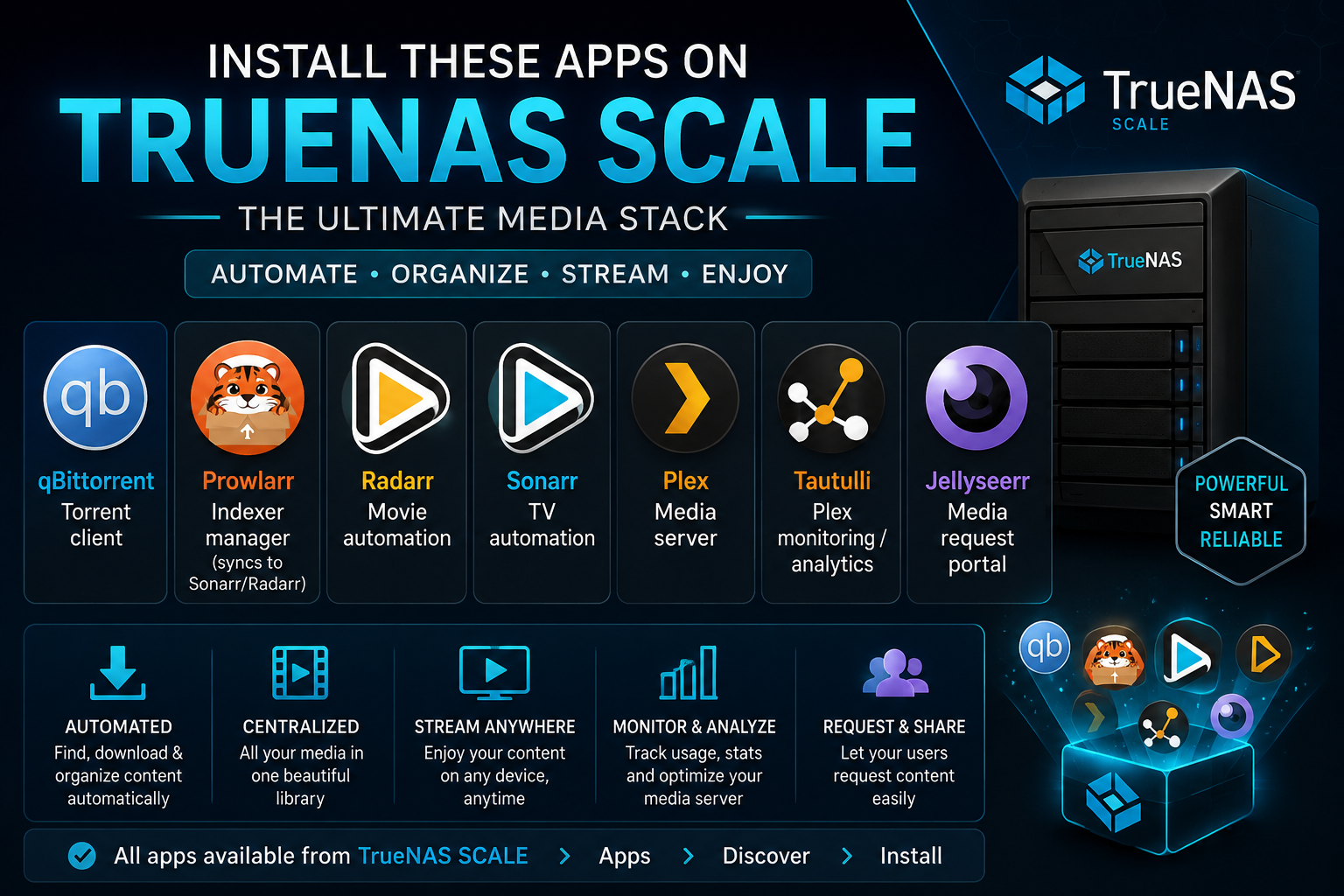
Media Stack Installation — qBittorrent, Prowlarr, Radarr, Sonarr, Plex, Tautulli, Sonarr & Seerr Fully Integrated
Managing a media library used to mean manually downloading files, renaming them, sorting them into folders, and hoping Plex picked them up. One sick day and you had 47 torrents in a "Downloads" folder and no idea what was what.
I built a full media automation stack — qBittorrent for downloading, Prowlarr for indexer management, Radarr and Sonarr for movie and TV management, Plex for playback, Tautulli for monitoring, and Jellyseerr for request handling. Once integrated, the entire pipeline runs without me touching a file.
This guide walks through installing every component on a single Ubuntu 24.04 server using Docker Compose, then wiring them together so a request in Jellyseerr becomes a downloaded, renamed, Plex-scanned, Tautulli-tracked file. No prior Docker or Linux experience required.
What It Is
| Stack | qBittorrent + Prowlarr + Radarr + Sonarr + Plex + Tautulli + Jellyseerr |
| Purpose | Fully automated media acquisition, organization, and playback |
| Platform | Ubuntu 24.04 LTS (Docker + Docker Compose) |
| License | Mix of GPL, MIT, and proprietary (Plex) |
| Repository | Individual GitHub repos (links in each section) |
The Apps
| App | Purpose | Port |
|---|---|---|
| qBittorrent | Torrent client | 8080 |
| Prowlarr | Indexer manager (syncs to Sonarr/Radarr) | 9696 |
| Radarr | Movie automation | 7878 |
| Sonarr | TV automation | 8989 |
| Plex | Media server | 32400 |
| Tautulli | Plex monitoring/analytics | 8181 |
| Jellyseerr | Media request portal | 5055 |
How They Connect
| Prowlarr | Radarr/Sonarr | qBittorrent | Tracker | /downloads | /movies or /tv | Plex | User | Tautulli | ||||||||
|---|---|---|---|---|---|---|---|---|---|---|---|---|---|---|---|---|
| send .torrent/magnet | ||||||||||||||||
| add torrent with category | ||||||||||||||||
| download files | ||||||||||||||||
| import + rename + move | ||||||||||||||||
| organized files | ||||||||||||||||
| trigger library scan | ||||||||||||||||
| stream | ||||||||||||||||
| track what's watched | ||||||||||||||||
The Core Problem: Eight Apps, Zero Integration
Installing eight Docker containers is the easy part. The hard part is making them trust each other:
- Radarr needs qBittorrent's API to add torrents and read completion status
- Sonarr needs the same — without conflicting categories
- Prowlarr needs API keys from every *arr app to sync indexer configs
- Plex needs to know when Radarr/Sonarr add new files so it can scan
- Jellyseerr needs Radarr/Sonarr API keys to submit requests
- Tautulli needs Plex credentials to monitor streams
- All of them need shared filesystem paths so completed downloads land where expected
Get one path wrong and Radarr imports from /downloads but Plex scans /media/movies — and you have a full download folder and an empty library.
This guide makes every path, API key, and integration explicit.
Step 0 — Server Requirements
Minimum Hardware
| Component | Minimum | Recommended |
|---|---|---|
| CPU | 4 cores (x86_64) | 6+ cores, Quick Sync for transcoding |
| RAM | 8 GB | 16–32 GB |
| Boot Drive | 256 GB SSD | 500 GB NVMe |
| Storage | 1 TB | 4+ TB (or NAS mount) |
| Network | 1 GbE | 2.5/10 GbE |
Software Prerequisites
# Update system
sudo apt update && sudo apt upgrade -y

# Install Docker
curl -fsSL https://get.docker.com | sudo sh
sudo usermod -aG docker $USER
newgrp docker

# Install Docker Compose (included with Docker Desktop, or)
sudo apt install docker-compose-plugin -y
docker compose version

# Verify
docker run hello-world
Directory Structure
All apps share a common structure so paths stay consistent:
mkdir -p /media-stack/{config,downloads,movies,tv,plex-transcode}
mkdir -p /media-stack/config/{qbittorrent,prowlarr,radarr,sonarr,plex,tautulli,jellyseerr}
mkdir -p /media-stack/downloads/{complete,incomplete}

# Set permissions (apps run as UID 1000 by default)
sudo chown -R 1000:1000 /media-stack
sudo chmod -R 775 /media-stack
Key point: Every container will map to the same
/media-stackpaths on the host. Inside containers, we use standardized paths (/config,/downloads,/movies,/tv). This means Radarr, Sonarr, and qBittorrent all see the same files.
Step 1 — Docker Compose File
Create /media-stack/docker-compose.yml:
version: "3.8"

# All services share the same network so they can reach each other by container name
networks:
  media-stack:
    driver: bridge

# Shared volumes for consistency
volumes:
  qbittorrent-config:
  prowlarr-config:
  radarr-config:
  sonarr-config:
  plex-config:
  tautulli-config:
  jellyseerr-config:

services:

  # ============================================================
  # QBITTORRENT — Torrent client
  # ============================================================
  qbittorrent:
    image: lscr.io/linuxserver/qbittorrent:5.2.3
    container_name: qbittorrent
    networks:
      - media-stack
    environment:
      - PUID=1000
      - PGID=1000
      - TZ=America/New_York
      - WEBUI_PORT=8080
    volumes:
      - qbittorrent-config:/config
      - /media-stack/downloads:/downloads
    ports:
      - "8080:8080"     # WebUI
      - "6881:6881"     # TCP peer
      - "6881:6881/udp" # UDP peer
    restart: unless-stopped

  # ============================================================
  # PROWLARR — Indexer manager
  # ============================================================
  prowlarr:
    image: lscr.io/linuxserver/prowlarr:latest
    container_name: prowlarr
    networks:
      - media-stack
    environment:
      - PUID=1000
      - PGID=1000
      - TZ=America/New_York
    volumes:
      - prowlarr-config:/config
    ports:
      - "9696:9696"
    restart: unless-stopped

  # ============================================================
  # RADARR — Movie automation
  # ============================================================
  radarr:
    image: lscr.io/linuxserver/radarr:latest
    container_name: radarr
    networks:
      - media-stack
    environment:
      - PUID=1000
      - PGID=1000
      - TZ=America/New_York
    volumes:
      - radarr-config:/config
      - /media-stack/movies:/movies
      - /media-stack/downloads:/downloads
    ports:
      - "7878:7878"
    restart: unless-stopped

  # ============================================================
  # SONARR — TV automation
  # ============================================================
  sonarr:
    image: lscr.io/linuxserver/sonarr:latest
    container_name: sonarr
    networks:
      - media-stack
    environment:
      - PUID=1000
      - PGID=1000
      - TZ=America/New_York
    volumes:
      - sonarr-config:/config
      - /media-stack/tv:/tv
      - /media-stack/downloads:/downloads
    ports:
      - "8989:8989"
    restart: unless-stopped

  # ============================================================
  # PLEX — Media server
  # ============================================================
  plex:
    image: lscr.io/linuxserver/plex:latest
    container_name: plex
    networks:
      - media-stack
    environment:
      - PUID=1000
      - PGID=1000
      - TZ=America/New_York
      - VERSION=docker
      - PLEX_CLAIM=claim-XXXXXXXXXXXX  # Get from https://www.plex.tv/claim/
    volumes:
      - plex-config:/config
      - /media-stack/plex-transcode:/transcode
      - /media-stack/movies:/movies
      - /media-stack/tv:/tv
    ports:
      - "32400:32400"   # Web UI
      - "1900:1900/udp" # DLNA
      - "5353:5353/udp" # Bonjour/Avahi
      - "8324:8324"     # Plex for Roku
      - "32410:32410/udp" # GDM network discovery
      - "32412:32412/udp"
      - "32413:32413/udp"
      - "32414:32414/udp"
      - "32469:32469"   # DLNA
    devices:
      - /dev/dri:/dev/dri  # Intel Quick Sync for hardware transcoding
    restart: unless-stopped

  # ============================================================
  # TAUTULLI — Plex monitoring
  # ============================================================
  tautulli:
    image: lscr.io/linuxserver/tautulli:latest
    container_name: tautulli
    networks:
      - media-stack
    environment:
      - PUID=1000
      - PGID=1000
      - TZ=America/New_York
    volumes:
      - tautulli-config:/config
    ports:
      - "8181:8181"
    restart: unless-stopped

  # ============================================================
  # JELLYSEERR — Media request portal
  # ============================================================
  jellyseerr:
    image: fallenbagel/jellyseerr:latest
    container_name: jellyseerr
    networks:
      - media-stack
    environment:
      - LOG_LEVEL=info
      - TZ=America/New_York
    volumes:
      - jellyseerr-config:/app/config
    ports:
      - "5055:5055"
    restart: unless-stopped
Launch Everything
cd /media-stack
docker compose up -d

# Verify all containers are running
docker compose ps

# Check logs for any errors
docker compose logs -f
Wait 2–3 minutes for all services to initialize, then verify each Web UI:
| App | URL |
|---|---|
| qBittorrent | http://YOUR_SERVER_IP:8080 |
| Prowlarr | http://YOUR_SERVER_IP:9696 |
| Radarr | http://YOUR_SERVER_IP:7878 |
| Sonarr | http://YOUR_SERVER_IP:8989 |
| Plex | http://YOUR_SERVER_IP:32400/web |
| Tautulli | http://YOUR_SERVER_IP:8181 |
| Jellyseerr | http://YOUR_SERVER_IP:5055 |
Step 2 — qBittorrent Configuration
First Login
Default credentials: admin / adminadmin
Immediately change the password: 1. Go to Tools → Options → Web UI 2. Set a strong username and password 3. Click Save
Configure Download Paths
Tools → Options → Downloads
| Setting | Value |
|---|---|
| Default Save Path | /downloads/complete |
| Keep incomplete torrents in | /downloads/incomplete |
| Append .!qB to incomplete files | ✅ Enabled |
| Automatically add torrents from | Disabled (we use *arr apps) |
Create Categories
Categories let Radarr and Sonarr manage torrents independently. When Radarr adds a torrent, it tags it as radarr — and Radarr only manages torrents in that category.
View → Category Tree → Add Category
| Category Name | Save Path |
|---|---|
radarr |
/downloads/complete |
sonarr |
/downloads/complete |
Critical: The category names must be exactly
radarrandsonarr(lowercase). The *arr apps search for these exact names.
Enable API Access
Tools → Options → WebUI → Authentication
- Enable "Bypass authentication for clients on localhost" (optional, for local *arr apps)
- Note: Radarr/Sonarr v4+/v6+ support qBittorrent 5.2's new auth — no extra config needed
Get the API Key
qBittorrent doesn't expose a separate API key — the *arr apps use the WebUI username/password for API access. Remember these credentials for Step 6.
Step 3 — Prowlarr Configuration
First Setup
- Open
http://YOUR_SERVER_IP:9696 - Setup Wizard:
- Authentication: Set username/password
- Client: Skip (we'll add apps manually)
- Indexers: Skip (we'll add manually)
Add Indexers
Indexers → Add Indexer
Start with these (free, no registration required):
| Indexer | Type | Notes |
|---|---|---|
| RARBG | Torrent | General, reliable |
| 1337x | Torrent | General |
| EZTV | Torrent | TV-specific |
| YTS | Torrent | Movies, small file sizes |
| EZTV | Torrent | TV-specific |
| TorrentGalaxy | Torrent | General |
| Nyaa | Torrent | Anime (if needed) |
For private trackers, add them with your passkey/API key.
Connect to *arr Apps
This is the magic step — Prowlarr syncs your indexer list to Radarr and Sonarr automatically.
Settings → Apps → Add App → Radarr
| Field | Value |
|---|---|
| Name | Radarr |
| Sync Level | Full Sync |
| Prowlarr Server | http://prowlarr:9696 |
| Radarr Server | http://radarr:7878 |
| API Key | (from Radarr: Settings → General → API Key) |
Settings → Apps → Add App → Sonarr
| Field | Value |
|---|---|
| Name | Sonarr |
| Sync Level | Full Sync |
| Prowlarr Server | http://prowlarr:9696 |
| Sonarr Server | http://sonarr:8989 |
| API Key | (from Sonarr: Settings → General → API Key) |
Note: Use container names (
prowlarr,radarr,sonarr) instead of IPs — Docker's internal DNS resolves them on the sharedmedia-stacknetwork.
After adding both apps, Prowlarr pushes all configured indexers to Radarr and Sonarr. Verify: - Radarr → Settings → Indexers — Should show all Prowlarr indexers - Sonarr → Settings → Indexers — Should show all Prowlarr indexers
Step 4 — Radarr Configuration
First Setup
- Open
http://YOUR_SERVER_IP:7878 - Setup Wizard:
- Authentication: Set username/password
- Movie folder: Skip (we'll configure manually)
Configure Download Client
Settings → Download Clients → Add → qBittorrent
| Field | Value |
|---|---|
| Name | qBittorrent |
| Host | qbittorrent |
| Port | 8080 |
| Username | (your qBittorrent username) |
| Password | (your qBittorrent password) |
| Category | radarr |
| Recent Movie Priority | High |
| Older Movie Priority | High |
Click Test — should show green checkmark.
Configure Root Folder
Settings → Media Management → Root Folders → Add
| Field | Value |
|---|---|
| Path | /movies |
Configure Quality Profile
Settings → Quality → Quality Profiles
Create a profile that matches your storage budget:
- Profile
- HD-1080p
- Qualities
- Bluray-1080p > Web-1080p > HDTV-1080p > Bluray-720p > Web-720p > HDTV-720p
- Cutoff
- Bluray-1080p
- Size limit
- ~8-15 GB per movie
- Profile
- UHD-4K
- Qualities
- Bluray-2160p > Web-2160p > HDTV-2160p
- Cutoff
- Bluray-2160p
- Size limit
- ~25-80 GB per movie
Configure Naming
Settings → Media Management → Naming
| Setting | Value |
|---|---|
| Standard Movie Format | {Movie CleanTitle} ({Release Year}) {Quality Full} |
| Folder Format | {Movie CleanTitle} ({Release Year}) [imdb-{ImdbId}] |
| Replace Spaces | No (or Yes, with .) |
Example result: /movies/The Matrix (1999) [imdb-tt0133093]/The Matrix (1999) Bluray-1080p.mkv
Enable Plex Notification
Settings → Connect → Add → Plex Media Server
| Field | Value |
|---|---|
| Name | Plex |
| Host | plex |
| Port | 32400 |
| Plex Token | (from Plex: Settings → General → Advanced → Click "Show Token") |
| Update Library | ✅ Enabled |
| After Upgrade | ✅ Enabled |
This tells Radarr to tell Plex to scan the movie library after importing a new file.
Step 5 — Sonarr Configuration
First Setup
- Open
http://YOUR_SERVER_IP:8989 - Setup Wizard:
- Authentication: Set username/password
- TV folder: Skip (we'll configure manually)
Configure Download Client
Settings → Download Clients → Add → qBittorrent
| Field | Value |
|---|---|
| Name | qBittorrent |
| Host | qbittorrent |
| Port | 8080 |
| Username | (your qBittorrent username) |
| Password | (your qBittorrent password) |
| Category | sonarr |
| Recent TV Priority | High |
| Older TV Priority | High |
| Season Folder | ✅ Enabled |
Click Test — should show green checkmark.
Configure Root Folder
Settings → Media Management → Root Folders → Add
| Field | Value |
|---|---|
| Path | /tv |
Configure Quality Profile
Settings → Quality → Quality Profiles
- Profile
- HD-1080p-TV
- Qualities
- Bluray-1080p > Web-1080p > HDTV-1080p > Bluray-720p > Web-720p > HDTV-720p
- Cutoff
- Bluray-1080p
- Size limit
- ~2-6 GB per episode
Configure Naming
Settings → Media Management → Naming
| Setting | Value |
|---|---|
| Standard Episode Format | {Series TitleYear} - S{season:00}E{episode:00} - {Episode CleanTitle} {Quality Full} |
| Season Folder Format | Season {season:00} |
| Series Folder Format | {Series TitleYear} [tvdb-{TvdbId}] |
| Replace Spaces | No (or Yes, with .) |
Example result: /tv/Breaking Bad (2008) [tvdb-81189]/Season 01/Breaking Bad (2008) - S01E01 - Pilot Bluray-1080p.mkv
Enable Plex Notification
Settings → Connect → Add → Plex Media Server
| Field | Value |
|---|---|
| Name | Plex |
| Host | plex |
| Port | 32400 |
| Plex Token | (from Plex: Settings → General → Advanced → Click "Show Token") |
| Update Library | ✅ Enabled |
| After Upgrade | ✅ Enabled |
Step 6 — Plex Configuration
First Setup
- Open
http://YOUR_SERVER_IP:32400/web - Setup Wizard:
- Sign in with your Plex account
- Server name:
MediaStack(or your choice) - Disable "Allow me to access my media outside my home" (enable later with port forwarding)
Create Libraries
Settings → Libraries → Add Library
| Library Type | Folder | Scanner | Agent |
|---|---|---|---|
| Movies | /movies |
Plex Movie | Plex Movie |
| TV Shows | /tv |
Plex TV Series | Plex TV Series |
Enable Hardware Transcoding
Settings → Transcoder
| Setting | Value |
|---|---|
| Transcoder quality | Automatic |
| Background transcoding | x264 |
| Use hardware acceleration | ✅ Enabled |
| Use hardware-accelerated video encoding | ✅ Enabled |
Note: Intel Quick Sync requires
/dev/dridevice passthrough (already in docker-compose.yml). For NVIDIA, add--runtime=nvidiaandNVIDIA_VISIBLE_DEVICES=all.
Get the Plex Token
Settings → General → Advanced → Click "Show Token"
Copy this token — you'll need it for Radarr, Sonarr, Tautulli, and Jellyseerr.
Enable Local Discovery
Settings → Network → Show Advanced
| Setting | Value |
|---|---|
| GDM network discovery | ✅ Enabled |
| DLNA | ✅ Enabled (optional) |
Step 7 — Tautulli Configuration
First Setup
- Open
http://YOUR_SERVER_IP:8181 - Setup Wizard:
- Sign in with your Plex account (OAuth)
- Select your Plex server
- Import existing history (optional)
Configure Plex Connection
Settings → Plex Media Server
| Field | Value |
|---|---|
| Plex IP/Hostname | plex |
| Plex Port | 32400 |
| Plex Token | (your Plex token) |
| Use SSL | No |
Click Test — should show green checkmark.
Enable Notifications
Settings → Notification Agents → Add a Notification Agent
Configure these triggers:
| Agent | Triggers |
|---|---|
| Recently Added, Playback Start, Server Down | |
| Discord | Recently Added, Playback Start |
| Telegram | Recently Added, Server Down |
| Webhook | All events (for custom integrations) |
Monitor Activity
Activity tab shows real-time streams: - Who's watching what - Transcoding vs direct play - Bandwidth usage - Quality being streamed
Step 8 — Jellyseerr Configuration
First Setup
- Open
http://YOUR_SERVER_IP:5055 - Setup Wizard:
- Sign in with your Plex account (OAuth)
- Select your Plex server
- Scan libraries (auto-detects Movies and TV)
Connect to Sonarr
Settings → Services → Sonarr → Add Sonarr Server
| Field | Value |
|---|---|
| Name | Sonarr |
| Hostname/IP | sonarr |
| Port | 8989 |
| API Key | (from Sonarr: Settings → General → API Key) |
| External URL | http://YOUR_SERVER_IP:8989 |
After saving, Jellyseerr auto-detects: - Root folders - Quality profiles - Language profiles - Tags
Enable: "4K Sonarr Requesting" (if you have 4K quality profile)
Connect to Radarr
Settings → Services → Radarr → Add Radarr Server
| Field | Value |
|---|---|
| Name | Radarr |
| Hostname/IP | radarr |
| Port | 7878 |
| API Key | (from Radarr: Settings → General → API Key) |
| External URL | http://YOUR_SERVER_IP:7878 |
Enable: "4K Radarr Requesting" (if applicable)
Configure Request Permissions
Settings → User Permissions
| Setting | Value |
|---|---|
| Local user requests | Require approval (or auto-approve) |
| Auto-approve after | X days |
| Default request limits | 5 movies/week, 10 episodes/week |
Set Up Email Invitations
Settings → Users → Invite User
- Enter email address
- Assign permissions (Admin, User, or Custom)
- User receives email to create account
- They can then request movies/TV through Jellyseerr
Step 9 — Full Integration Test
Now verify the entire pipeline works end-to-end.
Test 1: Request a Movie via Jellyseerr
- Open Jellyseerr → Search for a movie (e.g., "Dune")
- Click Request
- Jellyseerr sends to Radarr
- Radarr adds to monitored list
- Radarr searches Prowlarr indexers
- Radarr sends torrent to qBittorrent (category:
radarr) - qBittorrent downloads to
/downloads/complete - Radarr imports from
/downloads/complete→ renames → moves to/movies - Radarr notifies Plex to scan movie library
- Plex adds movie to library
- Tautulli logs "Recently Added" notification
Test 2: Request a TV Show via Jellyseerr
- Open Jellyseerr → Search for a TV show (e.g., "Severance")
- Select seasons to request
- Jellyseerr sends to Sonarr
- Sonarr adds to monitored list
- Sonarr searches Prowlarr indexers
- Sonarr sends torrent to qBittorrent (category:
sonarr) - qBittorrent downloads to
/downloads/complete - Sonarr imports from
/downloads/complete→ renames → moves to/tv - Sonarr notifies Plex to scan TV library
- Plex adds show to library
- Tautulli logs "Recently Added" notification
Test 3: Verify in Plex
- Open Plex → Check Movies library → "Dune" should appear
- Open Plex → Check TV library → "Severance" should appear
- Play a file → Verify direct play or transcoding works
- Check Tautulli → Activity tab should show your stream
Test 4: Verify in Tautulli
- Open Tautulli → History tab → Should show your playback
- Open Tautulli → Library Stats → Should show movie/TV counts
- Open Tautulli → Graphs → Should show streaming activity
Step 10 — Reverse Proxy (Optional but Recommended)
Put all services behind Nginx Proxy Manager or Traefik for HTTPS and clean URLs.
Nginx Proxy Manager Example
| Domain | Forward To | Scheme |
|---|---|---|
qbittorrent.yourdomain.com |
http://YOUR_SERVER_IP:8080 |
http |
prowlarr.yourdomain.com |
http://YOUR_SERVER_IP:9696 |
http |
radarr.yourdomain.com |
http://YOUR_SERVER_IP:7878 |
http |
sonarr.yourdomain.com |
http://YOUR_SERVER_IP:8989 |
http |
plex.yourdomain.com |
http://YOUR_SERVER_IP:32400 |
http |
tautulli.yourdomain.com |
http://YOUR_SERVER_IP:8181 |
http |
requests.yourdomain.com |
http://YOUR_SERVER_IP:5055 |
http |
Enable SSL with Let's Encrypt for each subdomain.
qBittorrent Reverse Proxy Header
Tools → Options → WebUI → Reverse proxy support
| Setting | Value |
|---|---|
| Enable reverse proxy support | ✅ |
| Trusted reverse proxy IPs | 172.16.0.0/12 (Docker subnet) |
| X-Forwarded-Host header | ✅ Enabled |
Step 11 — Backup & Maintenance
Backup Configurations
All app configs live in Docker volumes. Back them up:
# Stop containers
cd /media-stack && docker compose down

# Backup all config volumes
sudo tar -czf /backup/media-stack-configs-$(date +%Y%m%d).tar.gz \
  /var/lib/docker/volumes/media-stack_*

# Restart
docker compose up -d
Automated Backup Script
#!/bin/bash
# /media-stack/backup.sh
BACKUP_DIR="/backup/media-stack"
DATE=$(date +%Y%m%d_%H%M%S)

mkdir -p $BACKUP_DIR
cd /media-stack

docker compose stop
tar -czf "$BACKUP_DIR/configs-$DATE.tar.gz" \
  /var/lib/docker/volumes/media-stack_*
docker compose start

# Keep only last 7 backups
ls -t $BACKUP_DIR/configs-*.tar.gz | tail -n +8 | xargs rm -f
chmod +x /media-stack/backup.sh

# Add to crontab (weekly)
crontab -e
0 3 * * 0 /media-stack/backup.sh
Update All Containers
cd /media-stack

# Pull latest images
docker compose pull

# Recreate containers with new images
docker compose up -d

# Clean up old images
docker image prune -f
What I'd Tell Anyone Building One
-
Start with the categories. The #1 integration failure is qBittorrent categories not matching what Radarr/Sonarr expect. Create
radarrandsonarrcategories in qBittorrent before configuring download clients in the *arr apps. -
Use container names, not IPs. Docker's internal DNS resolves
qbittorrent,radarr,sonarr, etc. on the shared network. If you use IPs and your container restarts with a new IP, everything breaks. -
Map the same host paths everywhere. qBittorrent downloads to
/downloads. Radarr imports from/downloads. Sonarr imports from/downloads. Plex scans/moviesand/tv. If these paths don't match across containers, files get stuck in limbo. -
Don't skip the Plex notification step. Without Radarr/Sonarr telling Plex to scan, new files won't appear in your library until the next scheduled scan (which could be hours). The notification trigger is instant.
-
Test with one movie first. Don't bulk-add 500 movies before verifying the pipeline works. Request one movie, watch it flow through every app, confirm it lands in Plex. Then scale up.
-
Use a VPN for qBittorrent. Route qBittorrent through a VPN container (gluetun) so your ISP doesn't see torrent traffic. The other apps (Radarr, Sonarr, Plex) don't need VPN — only the torrent client does.
-
Set quality profiles conservatively. A 4K Remux is 50–80 GB. A 1080p BluRay is 8–15 GB. Start with 1080p profiles and only add 4K if you have the storage and bandwidth. You can always upgrade quality later.
Get It
- qBittorrent: qbittorrent.org
- Prowlarr: prowlarr.com
- Radarr: radarr.video
- Sonarr: sonarr.tv
- Plex: plex.tv
- Tautulli: tautulli.com
- Jellyseerr: github.com/Fallenbagel/Jellyseerr
- Docker Compose Docs: docs.docker.com/compose
Last updated: 2026-08-30 — Tested on Ubuntu 24.04 LTS with Docker 27.x. Versions: qBittorrent 5.2.3, Prowlarr v3, Radarr v6, Sonarr v4, Plex 1.40+, Tautulli 2.14+, Jellyseerr 2.0+.